If you’re a Kroger associate trying to log in to MyTime Kroger, you’ve landed in the right place. Whether you need to check your upcoming shifts, view a pay stub, download a W-2, or request time off, everything runs through the same secure employee portal , and this guide walks you through every step, including what to do when something goes wrong.
This page covers the official login process, what you’ll find inside the portal, how it connects to MyInfo and the FEED app, and how to resolve the most common issues associates run into.
What Is MyTime Kroger and Who Uses It?
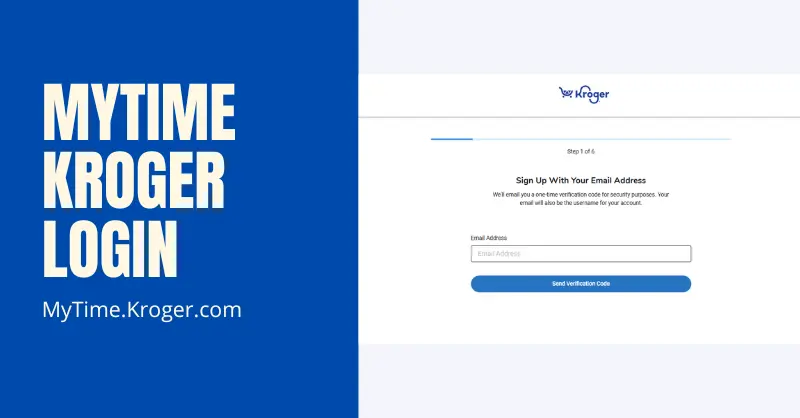
MyTime.Kroger.com is Kroger’s official employee self-service login portal, powered by UKG (Ultimate Kronos Group) , the same workforce management platform used by many large retail employers. It’s sometimes called the Kroger ESS (Employee Self-Service) system, and both names point to the same portal.
It allows team members across all Kroger-owned stores including (Ralphs, Fred Meyer, King Soopers, Smith’s, Fry’s, Harris Teeter, or any other Kroger Co. banner) to access:
- Your weekly and upcoming work schedule
- Current and past pay stubs, available online every Wednesday
- W-2 and tax documents during tax season
- Time-off requests and PTO balance
- Shift swap requests (where enabled by your store)
- Benefits enrollment and health insurance details
- Personal information like address and emergency contacts
- Company updates and internal communications
MyTime.Kroger.com Login Requirements
Before signing in to your MyTime Kroger account, make sure you have the following:
- A current Kroger employee account
- Your Enterprise User ID and password
- A stable internet connection
- You’re accessing through a secure browser
How to Log In to MyTime Kroger (Step-by-Step Guide)
Before logging in, make sure you have your Enterprise User ID (EUID) and SSO password ready. These are the same credentials used to access MyTime, MyInfo, ESS, and the FEED app.
Step 1: Open the Official MyTime Website
Open your preferred browser and visit: https://mytime.kroger.com the official MyTime Kroger login page.
Step 2: Enter Your Enterprise User ID (EUID)
Type your Enterprise User ID (EUID) in the username field. Do not use your email address or employee number.
Step 3: Enter Your SSO Password
Enter your SSO password, then click Sign In to continue.
Step 4: Complete Identity Verification (If Required)
If prompted, complete the verification process by entering the security code sent to your registered device.
Step 5: Access Your MyTime Dashboard
After signing in, you’ll be redirected to your MyTime dashboard, where you can view your work schedule, timecards, shifts, PTO requests, and other employee information.
How to Reset Your MyTime Kroger Password
Kroger requires a password reset every 90 days for security purposes. If your password has expired or you’ve forgotten it:
- Go to mytime.kroger.com
- Click Forgot Password on the login screen
- Enter your EUID
- Follow the identity verification steps
- Create a new password and log in
If you need help? Contact the Kroger Help Desk: 1-800-952-8889
Important: Some password resets require you to be on the Kroger network — if you’re attempting a reset from home and running into issues, try from a store computer or contact the Help Desk directly.
Key Features of the MyTime Kroger Employee Portal
| Feature | What You Can Do with mytime kroger |
| Work Schedule | View Your Work Schedule |
| PTO Requests | Request time off |
| Pay Stubs | View & download payment details easily |
| Update Profile | Modify contact & address info |
| Company News | Read updates, memos & alerts |
| Tax Forms | Access W-2 and W-4 forms |
| Benefits | Check health, dental, 401(k), and much more |
| Internal Jobs | Apply for new roles or transfers/posting |
What Is a Kroger EUID and Where Do You Find It?
The EUID (Enterprise User ID) is the key to your entire Kroger employee account. It’s created by Kroger’s HR system when you’re hired and is typically given to you during onboarding by your store manager or HR representative.
If you were just hired and your EUID isn’t activating yet, this is expected. Kroger’s HR provisioning system generally takes 3 to 7 days after onboarding to create your account. In some cases it can take up to three weeks if there was a delay in paperwork submission. During this period, ask your store manager to confirm your EUID was submitted and to share your scheduled shifts directly until portal access is active.
If you’ve been employed for a while and can’t remember your EUID, check any previous onboarding documents, pay stubs, or ask your store manager or HR contact to look it up.
Checking Your Kroger Work Schedule Online
Once you’re inside the portal, viewing your schedule takes just a few clicks:
- From the main dashboard, look for My E-Schedule, My E-Plan, or simply Schedule — the label varies by Kroger division
- Click to open the scheduling view
- Use the date navigation arrows to move between current, past, and upcoming weeks
- Check assigned shifts, start and end times, roles, and any coverage gaps
From the same scheduling section, you can submit time-off requests, check your approved PTO balance, and request shift swaps with other associates. Shift swap requests require manager approval and are processed through the UKG system.
If your Schedule is not showing up and it is blank, it usually means the manager hasn’t posted it yet for the upcoming week. Schedule availability varies by store , some post a week in advance, others just a few days. If it’s missing for a week that should already be posted, check with your manager before calling the Help Desk.
Viewing Pay Stubs and Tax Documents
Pay stubs are available online every Wednesday – usually earlier than paper copies would arrive. To access them:
- Log in to MyTime or MyInfo (both connect to the same payroll system)
- Navigate to Pay Stubs or Pay History from the dashboard
- Select the pay period you want to view
- Download or print as needed
You can view current and historical pay stubs, track overtime, see deductions, and monitor bonus payments all from this section.
W-2 forms become available in January for the prior tax year. Go to the Tax Documents or W-2 section of the dashboard to download your form directly , no need to wait for a mailed copy. Current employees and former employees who separated within the last year typically have W-2 access through the portal.
Difference Between MyTime, MyInfo, ESS, and FEED
This is one of the most common points of confusion for Kroger associates, especially new hires. Here’s a clear breakdown:
| System | What It’s For | URL or Access |
| MyTime | Scheduling, timecards, clock-in/out, shift management | mytime.kroger.com |
| MyInfo | Pay stubs, W-2s, benefits, personal info, HR records | myinfo.kroger.com |
| ESS (Employee Self-Service) | Same as MyInfo , different name, same login | myinfo.kroger.com |
| FEED App | Mobile access to MyTime + MyInfo + company news | App Store / Google Play |
| UKG Dimensions | The back-end scheduling platform that powers MyTime | Accessible via MyTime |
In short, use MyTime to manage your work schedule, timecards, shifts, and time-off requests. Use MyInfo to access pay stubs, W-2 forms, benefits, and personal information. The FEED app gives you convenient mobile access to both portals, while ESS is simply another name for MyInfo. All of these services use the same Enterprise User ID (EUID) and password.
The Kroger FEED App – Mobile Access to Everything
The Kroger FEED app is the mobile version of the employee portal, and for most associates it’s the most convenient way to manage work-related tasks on the go. It combines schedule access, pay information, company news, and team messaging in one place.
How to download and set up the FEED app:
- Open the App Store on Iphone or Google Play Store if you,re an android user
- Search for “FEED” look for the official app from Kroger
- Install it, then open and log in with your EUID and SSO password
- Complete any verification step if prompted
- Set up notifications so you’re alerted when your schedule updates or when a shift-swap request is approved
The app gives you real-time schedule visibility, paycheck notifications, and the ability to submit time-off requests without needing to log into a browser. It’s particularly useful for checking your schedule on days off without tracking down a computer.
Kroger’s Updated Clock-In Policy (Effective June 4, 2025)
In June 2025, Kroger implemented significant changes to how timecards and clock-in punches are managed across all divisions. Associates and managers should be aware of the following:
- You must be clocked in to make timecard edits corrections to missed or incorrect punches can no longer be made while off the clock
- Managers must manually approve any early clock-ins or punches outside assigned shifts
- Timecard corrections are limited to the previous week — errors older than one pay period require HR involvement
- The system runs on UKG Dimensions (formerly Kronos), and all changes are logged automatically
The main practical impact: if you miss a punch or clock in at the wrong time, report it to your manager immediately during your shift rather than trying to fix it after. Delays in catching errors can push corrections past the edit window and cause pay delays on your next check.
Common MyTime Login Problems and How to Fix Them
If you’re unable to access your MyTime Kroger account, don’t worry. Here are the most common issues and how to fix them.
Wrong EUID or Password
Make sure you’re entering your **Enterprise User ID (EUID)** instead of your email address or employee ID. Passwords are case-sensitive, so double-check your credentials before signing in.
Account Locked
Too many failed login attempts can temporarily lock your account. Wait 15–30 minutes, then try again. If you’re still unable to sign in, use the **Forgot Password** option or contact your store manager or Kroger Help Desk.
MyTime Kroger Website Not Loading
If the MyTime Kroger login page isn’t loading, clear your browser’s cache and cookies, then try again using Chrome, Edge, Firefox, or Safari. If you’re using a VPN, disable it and reload the page.
New Employee Account Not Found
If you’re a new Kroger employee, your MyTime account may not be activated yet. Account setup usually takes a few days after onboarding. If the issue continues, contact your store manager or HR department.
Work Schedule Not Showing
If your work schedule is missing, it may not have been published yet. Refresh the page or check again later. You can also confirm your upcoming shifts with your store manager.
Password Expired
For security reasons, Kroger may require you to update your password periodically. Select **Forgot Password** on the login page, create a new password, and sign in again.
Accessing MyTime When You’re Away From the Store
The portal is accessible from any device with an internet connection – you don’t need to be on the Kroger network to view your schedule or pay stubs. Use a personal phone, home computer, or tablet at mytime.kroger.com or through the FEED app.
If you’re traveling internationally or using an unusual network, and the login page isn’t loading, it may be a regional network restriction. Switching to a different network or disabling a VPN typically resolves this.
Frequently Asked Questions (FAQs)
Q1. What is the Kroger EUID?
Your “Enterprise User ID (EUID)” is the username used to sign in to MyTime and other Kroger employee portals. It is usually a combination of letters and numbers assigned by Kroger.
Q2. Can I access MyTime Kroger from home?
Yes. You can access **MyTime Kroger** from any computer, laptop, or mobile device by visiting the official MyTime login page and signing in with your EUID and password.
Q3. What should I do if MyTime Kroger is not loading?
Clear your browser cache, try Chrome, Edge, Firefox, or Safari, and make sure you have a stable internet connection. If the problem continues, contact your store manager or Kroger Help Desk.
Q4. Is MyTime the same as Kroger MyInfo?
No. “MyTime” is used for work schedules, timecards, and shift management, while “MyInfo” is used for pay stubs, benefits, tax forms, and employee information.
Q5. Can new employees register for MyTime themselves?
No. Your MyTime account is created automatically after you’re hired. If your account isn’t active, allow a few days for setup or contact your manager or HR department.
Q6. Can I use MyTime Kroger on my phone?
Yes. You can access MyTime from your mobile browser or through the “FEED” app using your EUID and password to view schedules and manage work-related tasks.
Q7. Does MyTime show PTO balances and time-off requests?
Yes. MyTime lets you view approved time-off requests, PTO balances, and upcoming schedules. Contact your manager if any information appears incorrect.
Q8. How often do I need to reset my MyTime password?
For security reasons, Kroger may require you to update your password periodically. If your password expires, use the “Forgot Password” option on the login page to create a new one.
Q9. Is MyTime the same as MyInfo Kroger?
No. MyTime Kroger is designed for work schedules, timecards, and shift management, while MyInfo Kroger is used for pay stubs, benefits, tax forms, and employee information. Both portals use the same Enterprise User ID (EUID), but they serve different purposes.
Conclusion
MyTime Kroger is the official employee portal for managing work schedules, timecards, shift requests, and time-off requests in one place. By signing in with your Enterprise User ID (EUID), you can access your work information anytime from a computer or mobile device.
If you’re having trouble logging in, follow the troubleshooting steps in this guide or contact your store manager or Kroger Help Desk for assistance. Keeping your login credentials secure and using the official MyTime Kroger portal will help protect your account and ensure uninterrupted access.